

A canonical tag is an HTML element that tells search engines which version of a page to index when multiple URLs show the same or very similar content. This tag often lives in the page’s head section and points to a single, preferred URL.
An interesting thing about a canonical tag is that Google treats it as a strong hint, not a hard directive, which is the detail that trips up most implementations.
By the end of this article, you’ll know how to implement canonical tags correctly, use the proper syntax, use self-referencing canonicals, set up cross-domain canonicals, and determine when a canonical tag is the right solution rather than a redirect or noindex.
The Basic Syntax of a Canonical Tag
A typical canonical tag looks like this:
<link rel=”canonical” href=”https://example.com/pricing/” />
Note that this line goes inside the <head> tag of the page. One thing to pay careful attention to is the “href value,” which should always be the full, absolute URL, including the protocol. This explains why a relative path or a missing protocol is one of the most common ways canonical tags silently fail.
Self-Referencing Canonicals
A self-referencing canonical tells search engines that the current page is the preferred version of its own URL. Although this may seem redundant, you should add one to every indexable page, not only to pages where you expect duplicate content.
Here are the key benefits of using self-referencing canonicals:
- Protect your pages from unexpected URL variations: A self-referencing canonical helps consolidate URL variants you may not anticipate, such as tracking parameters or parameters added by third-party tools.
- Make your preferred URL clear: It tells Google which version of the page you want to treat as canonical instead of leaving Google to determine the preferred URL when it discovers another version.
- Keep implementation simple: Adding the canonical to your page template costs little to implement and requires minimal maintenance once you set it up.
Practical step: Add a self-referencing canonical tag to your page template by default. This automatically adds a canonical tag to every new page without having to rely on content editors to add one manually.
Cross-Domain Canonicals
A cross-domain canonical tells search engines that the preferred version of a page lives on a different domain. You can use this when you publish identical content across multiple websites, such as a press release shared between your site and a partner’s website or content published across a company’s regional domains.
<link rel=”canonical” href=”https://partner-site.com/original-article/” />
The idea is to use a cross-domain canonical when you control the relationship between the domains and genuinely want search engines to consolidate ranking signals toward the other domain.
However, don’t set your canonical to another domain just because someone copied or republished your content. For instance, if another site scrapes or republishes your original article without your permission, you should keep the canonical pointing to your own URL. So in practice, this means you should use a cross-domain canonical only when you want the other version to be treated as the preferred source—not when someone simply duplicates your content.
Handling URL Parameters
Parameters are the most common source of accidental duplicate content, and canonical tags are the most common fix.
https://example.com/shoes/?color=red&sort=price
https://example.com/shoes/?sort=price&color=red
https://example.com/shoes/?utm_source=newsletter
All three of these can reasonably canonicalize to the clean version:
<link rel=”canonical” href=”https://example.com/shoes/” />
This works whether the parameter reorders existing filters, adds a tracking tag, or introduces a session ID. The rule of thumb: if the parameter doesn’t change what the user sees in a way that matters for search, canonicalize back to the clean URL. If it meaningfully changes the content, such as a genuine content-altering filter, the parameter version may deserve to be indexable in its own right rather than canonicalized away.
Canonical Tag vs. Other SEO Options
SEO professionals often use canonical tags by default, even when another solution may be more appropriate. Each of the four options serves a different purpose, so choose the one that best fits your specific situation.
| Tool | What It Does | Use It When |
|---|---|---|
| Canonical tag | Suggests a preferred version to index; both URLs stay live and accessible | Multiple URLs legitimately need to stay accessible (parameters, print views, session variants) |
| 301 redirect | Permanently sends users and crawlers to a new URL; the old URL stops resolving | A page has permanently moved, and the old URL should not exist anymore |
| Noindex tag | Tells search engines not to index the page at all, canonical or not | The page should stay live for users but never appear in search results |
| Hreflang | Tells search engines which language or regional version to show to which users | You run separate, genuinely translated or localized versions of the same page. |
The most common mistake in this group is using a canonical tag when a 301 redirect was the right call. If the old URL truly has no reason to exist anymore, redirect it. A canonical tag left on a page you meant to retire just leaves a live, crawlable duplicate sitting around indefinitely. Our redirects and redirect chains guide covers when a redirect is the better tool and how to avoid chaining them.
Mistakes That Can Quietly Break Canonical Tags
Canonical tag problems often go unnoticed because they do not always produce obvious errors. Check your site for these common issues:
- Using relative URLs in the href attribute: A canonical such as /pricing/ may resolve differently depending on the page and how a crawler interprets the base URL. Use the full absolute URL, such as https://example.com/pricing/, to clearly identify the preferred page.
- Adding multiple canonical tags: CMS updates or plugin conflicts can leave several canonical tags on the same page, and each pointing to a different URL. Keep only one clear canonical declaration per page.
- Injecting canonicals with client-side JavaScript: Some crawlers may process JavaScript differently or later than the raw HTML. Place your canonical tag directly in the HTML <head> whenever possible.
- Pointing paginated pages to the first page: Canonicalizing page two or three to page one can cause Google to overlook those pages, even when they contain unique products, articles, or other valuable content.
- Pointing to a URL that redirects: If your canonical points to a URL that redirects to another page, you create an unnecessary extra step. Point the canonical directly to the final preferred URL instead.
How to Verify That Your Canonical Tags Work Correctly
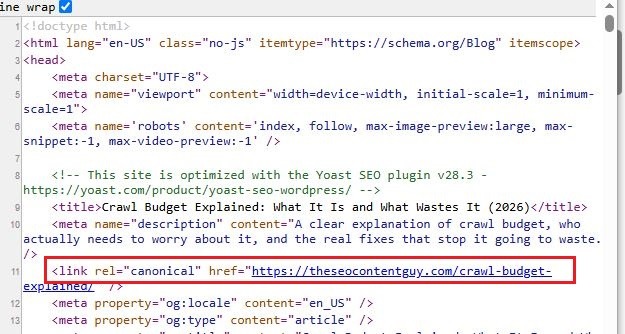
Step 1: View the page source:
Open the raw HTML source rather than relying solely on the rendered DOM. This lets you confirm that the canonical tag appears in the <head> section of the HTML and does not depend solely on JavaScript.
To view the source, right-click anywhere on the webpage you want to inspect and select “View page source” from the dropdown menu.
Step 2: Check for duplicate canonical tags:
This involves confirming that each page contains exactly one canonical tag. The emphasis is on a single canonical tag. And that’s because multiple canonical tags pointing to different URLs can confuse Google. This can cause it to ignore your declarations and choose its own preferred URL.
Step 3: Check Google Search Console:
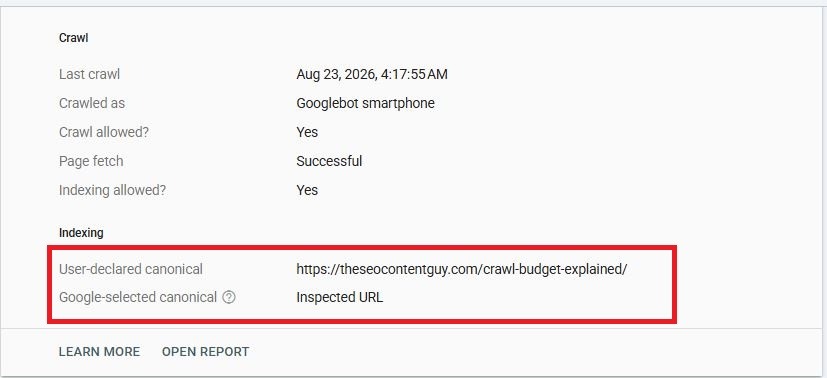
The URL Inspection tool in Google Search Console helps you see which canonical URL Google selected. The idea is to compare Google’s choice with the canonical URL you declared. When the two URLs differ, you can check for stronger signals elsewhere, such as internal links or a sitemap pointing to a different URL.
Step 4: Crawl your website
Use a crawler such as Screaming Frog to audit your canonical tags. The goal is to export the canonical report and check for pages with missing tags, incorrect canonical URLs, or canonical tags that point to URLs that no longer exist.
How Canonical Tags Fit Into Your Broader Technical SEO Strategy
Canonical tags form one part of a broader strategy for managing duplicate content. To learn about other causes of duplicate content and how to fix them, see our guide to duplicate content.
That said, it’s important to note that if Google still does not index pages with correct canonical tags, the problem likely comes from another technical SEO issue. See our guide to indexation issues to diagnose those problems.
For a broader overview of technical SEO for SaaS websites, see our SaaS technical SEO guide.
Frequently Asked Questions About Canonical Tags
Will Google always follow my canonical tag?
No. Google treats a canonical tag as a strong signal, not a strict instruction or command. For example, if other signals conflict with your declared canonical, such as internal links or a sitemap that consistently points to a different URL, Google may choose another canonical instead.
Can I set a canonical to a completely unrelated page?
You can, but Google will likely ignore it. Canonical tags work best when the two URLs contain substantially similar or closely related content. If you point a canonical to an unrelated page, Google may disregard the signal and choose a canonical based on other factors.
Should every indexable page have a canonical tag, even if it has no duplicates?
Yes. Adding a self-referencing canonical to every indexable page is standard practice. It tells search engines which URL you consider the preferred version. And this eventually helps protect against URL variations or duplicate versions you may not have anticipated.
What if I add two different canonical tags to the same page?
Google may ignore both canonical tags and choose its own preferred URL based on signals such as internal links, sitemaps, and page content. To avoid unpredictable results, check your pages for duplicate canonical tags and make sure each page has one clear and consistent canonical declaration.
Quick Reference: Canonical Setup by Scenario
| Scenario | What to Do |
|---|---|
| Standard page, no known duplicates | Self-referencing canonical pointing to its own clean URL |
| URL with tracking or sorting parameters | Canonical to the clean, parameter-free version |
| HTTP and HTTPS or www and non-www variants | Canonical to the single HTTPS, preferred-domain version |
| Content syndicated to a partner site you control | Canonical on the partner’s copy pointing back to your original |
| Page that has permanently moved | 301 redirect instead of a canonical tag |
| Paginated series (page 2, page 3, etc.) | Self-referencing canonical on each page, not all pointing to page 1 |
| Print-friendly or PDF version of a page | Canonical pointing to the standard web version |