

Your SaaS business is most likely facing an indexation issue if any of the following sounds familiar:
- Searching site:yoursite.com/your-page-url turns up nothing, even though the page is live.
- The Page Indexing report in Search Console shows a growing number of pages under “Not indexed“
- You published a page one, two, even four weeks ago, and it still hasn’t shown up in search results.
- A page that used to rank has vanished entirely, not just dropped in position.
- Your total indexed page count is far lower than the number of pages you’ve actually published.
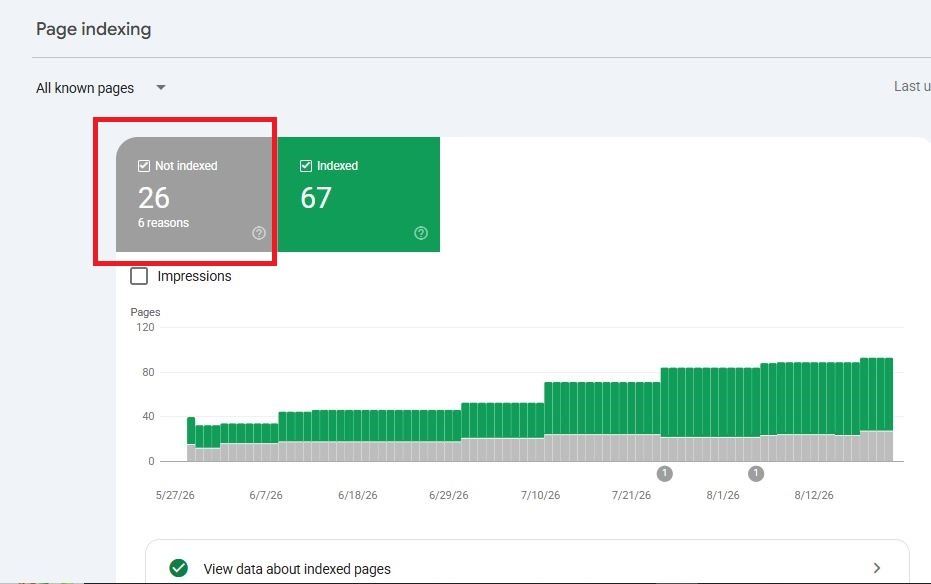
With that all in mind, it’s paramount to note that Indexation issues don’t have a one-size-fits-all fix. And that’s because they have several different causes that produce the same visible symptom: a page missing from search.
However, the fastest way to solve one is to find out exactly which cause you’re dealing with, which is what the rest of this guide walks you through.
Indexation Is Different From Crawling and Ranking
Crawling, indexation, and ranking represent three different stages of how Google handles a webpage. To start with, crawling happens when Googlebot requests and reads a page. On one hand, indexation happens when Google decides to store that page in its index as a potential search result.
Last but not least, ranking happens when Google determines where that indexed page should appear for a specific search query.
Meanwhile, note that Google can crawl a page without indexing it. Also, a page can be indexed and still rank poorly. This guide focuses on the middle stage: pages Google has crawled but decided not to index, as well as pages Google has deliberately excluded from its index.
How to Diagnose and Fix Indexation Issues in Google Search Console
Step 1: Confirm You Actually Have an Indexation Problem
Before you start troubleshooting, eliminate the possibility that the page is already indexed.
- Search Google for site:yoursite.com/the-exact-url, replacing the example with the exact URL you want to check. Something like this:
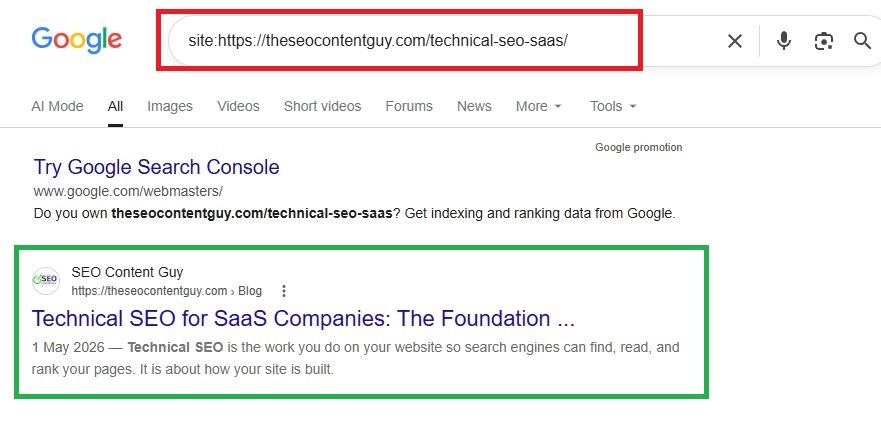
- If Google returns the page, even if it ranks poorly, you do not have an indexation problem. Of course, that shows that Google has already indexed the page. With this in mind, your issue is more likely related to relevance, content quality, or authority.
- If Google does not return the page, move to Step 2.
Step 2: Check the Exact Status in Search Console
Use Google Search Console’s URL Inspection tool to identify why Google has not indexed the page. The status Google reports determines your next troubleshooting step.
You need to open Google Search Console, select URL Inspection from the left sidebar, enter the page’s complete URL, and press Enter.
Afterward, you can wait for the live inspection to finish. Do not rely solely on the cached status because Search Console’s stored data can be several days old. Once the inspection is completed, you’ll find something like this:
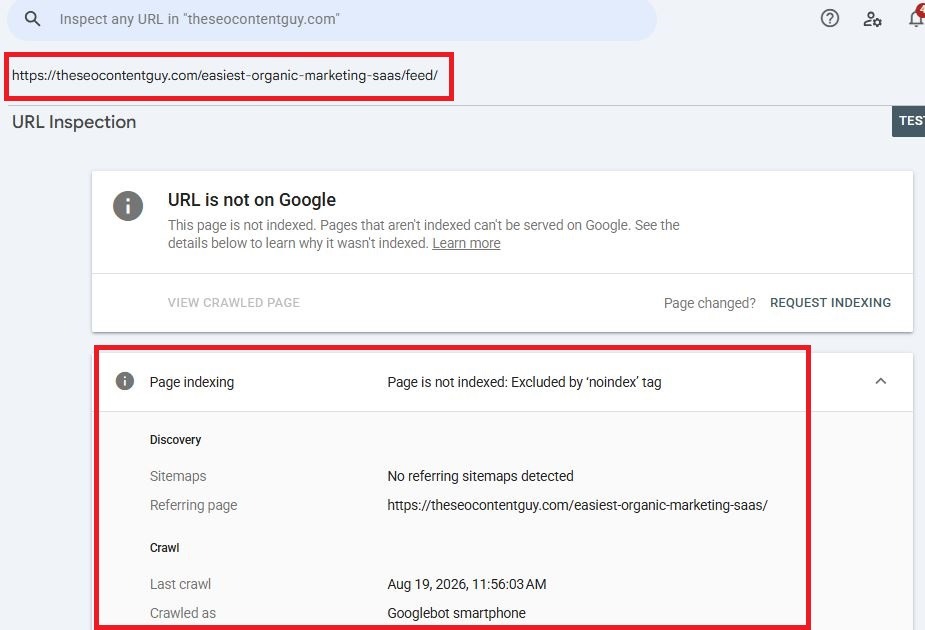
The idea is to record the exact status shown under Coverage and use the explanations below to determine what to fix.
Search Console status: What it means and what to do
Google may leave your pages out of its index for several reasons. Search Console identifies these issues with specific status messages. Below are some of the most common statuses you may encounter and what each one means for your pages.
Excluded by “noindex” tag:
This is a status that shows that Google found a noindex directive in the page’s HTML or HTTP headers and is following it. In this scenario, the first thing is to determine whether you intentionally added the directive. If you did not, remove it from the page template.
Now, here’s the thing: resolving the issue of the “noindex” tag involves checking both the HTML <head> and any X-Robots-Tag HTTP headers. And that’s because your CMS or server may apply the directive in either location.
Blocked by robots.txt
Your robots.txt rules prevent Google from crawling the page. Because Google cannot access the page properly, it cannot evaluate its content for indexing. This is why you should review your Disallow rules and confirm whether blocking this URL is intentional.
If you don’t know how to do that, see our robots.txt guide for how to check your Disallow rules against this URL and confirm whether the block is intentional.
Duplicate, Google chose a different canonical than the user.
This status appears when Google finds your page similar or identical to another URL and chooses a different URL as the canonical version, even though you specified your preferred canonical.
Start by checking the page’s canonical tag. Then, make sure your internal links, sitemap entries, redirects, and other canonical signals consistently support the same preferred URL.
For a complete walkthrough, see our canonical tags guide and duplicate content guide.
Crawled, currently not indexed
“Crawled, currently not indexed” means that Google successfully crawled a page but decided not to add it to the index. This usually points to a quality, uniqueness, or content-value issue rather than a technical crawling block.
That’s why it’s essential to review the page’s depth, originality, usefulness, and potential index-bloat issues before making technical changes.
Discovered, currently not indexed
A page or URL is considered discovered but not currently indexed when Google knows it exists, often through your sitemap or internal links, but has not crawled it yet. To investigate this issue, you can confirm that the URL appears in your XML sitemap and receives internal links from relevant indexed pages.
Now here’s the thing: for very large websites, this status can also indicate crawl-priority or crawl-budget constraints.
Page with redirect
A page falls under this category when the URL you inspected redirects to another URL. The reason is that Google evaluates and potentially indexes the destination URL rather than the redirecting URL.
So the idea is to inspect the destination URL instead. If the redirect is accidental or passes through several redirects, troubleshoot the redirecting URL separately.
Soft 404
A soft 404 occurs when a server returns a 200 OK status, but Google determines that the page offers little or no useful content and behaves like a missing or error page.
This is why, upon spotting a page(s) tagged with soft 404 issues, it becomes necessary to check for issues such as extremely thin content, broken product pages displaying messages like “item not found,” or automatically generated pages that provide little value.
There are two practical ways to resolve this issue. The first is to add meaningful, useful content so the page remains available. The second is to ensure that the page returns the appropriate 404 or 410 HTTP status code instead if the page no longer exists.
Alternate page with proper canonical tag
This status usually does not indicate a problem. It only shows that Google has accepted your canonical declaration and is indexing the preferred canonical URL instead of this alternate version. Here’s the point to note: no action is necessary if Google selected the URL you want to rank.
That’s why the main step to take is to verify the declared canonical and confirm that it points to the correct ranking page.
Quality Signals and Index Bloat
The “Crawled, currently not indexed” status and index bloat need a closer look because they are among the most misunderstood indexing issues.
Google does not automatically index every page it crawls. After crawling a page, Google evaluates whether the page provides enough unique value to deserve a place in its index and potentially appear in search results.
Pages that Google decides not to index often share some common characteristics:
- They provide thin content. The page offers very little useful information beyond its title or basic details. This often happens with automatically generated location, tag, or category pages.
- They closely resemble other pages on the site. The content may follow the same template as several other pages, with only a few words, locations, products, or other variables changed.
- They receive little or no internal linking. When important pages on your site rarely link to a page, you send Google a signal that the page may not be particularly important, even when the content itself is useful.
- They belong to a section with inconsistent content quality. When a large number of low-value pages exist within the same section of a website, Google may become more selective about indexing new pages from that area.
This leads us to index bloat.
Index bloat occurs when a website accumulates a large number of low-value, thin, duplicate, or near-duplicate pages. The problem is not limited to those weak pages. A large volume of low-quality URLs can also make it harder for Google’s systems to identify and prioritize your site’s genuinely valuable content.
For example, imagine that you publish thousands of automatically generated pages, but only a small percentage provide unique and useful information. Even your strongest pages within that section may struggle to get indexed because Google must evaluate the overall quality and value of the URLs you publish.
If you generate pages programmatically at scale, investigate index bloat when valuable pages fail to get indexed. Do not focus only on improving the individual page you want Google to index.
Instead, audit the larger section of your site. Identify pages that provide little value, duplicate existing content, or serve no clear purpose. Then consider removing them, consolidating them, or adding a noindex directive where appropriate.
In many cases, improving your site’s overall index quality produces better results than repeatedly trying to force Google to index a page in isolation.
How to Audit for Index Bloat
- Export your URL data from Google Search Console.
Get the complete list of indexed URLs and URLs Google has discovered or crawled but has not indexed from the Page Indexing report. - Group non-indexed URLs by page type or template.
Sort them into categories such as tag pages, location pages, filtered listings, or other automatically generated pages. This helps you spot patterns without reviewing every URL individually. - Review a sample from each group.
Open five to ten URLs from each category and examine their content. Ask whether each page provides unique value or simply repeats the same boilerplate content while changing a few details, such as a location or product name. - Identify templates creating large volumes of low-value pages.
Once you find templates generating thin or duplicate content at scale, decide what to do with them. Depending on their value to users and search engines, you may need to add a noindex directive, consolidate similar pages, or remove unnecessary pages entirely. - Give Google time to process the changes.
After cleaning up weak templates, wait two to four weeks before reviewing your indexing data again. This gives Google time to recrawl the affected pages and reassess whether they deserve to appear in the index.
How Indexation Fits Into Your Broader Technical SEO Strategy
Indexation depends on the work you do earlier in the technical SEO process. Your XML sitemap and robots.txt file help Google discover and crawl your pages. But your canonical tags and duplicate content strategy help Google determine which version of similar or duplicate pages it should index.
To understand how these elements work together across your website, see our SaaS technical SEO guide.
Frequently Asked Questions about Indexation Issues
How long should I wait before treating a new page as an indexation problem?
Give it one to two weeks on an established site with regular crawling. On a brand new site with little crawl history, a longer wait is normal before assuming something is wrong.
Can requesting indexing in Search Console fix this permanently?
It can prompt a one-time crawl and re-evaluation, but it doesn’t override the underlying reason Google excluded the page. If the cause is thin content, a manual indexing request will not hold without a genuine content fix.
Does a low indexed-to-published ratio always mean a problem?
Not always. Intentionally noindexed pages, like internal search results or filtered archive pages, should appear as excluded. The ratio only signals a problem when pages you want indexed are the ones missing.
Should I submit the same URL for indexing repeatedly?
No. Repeated manual requests without an underlying fix don’t improve your odds and can appear to be an attempt to game the system. Fix the root cause first, request once, then let it recrawl naturally.
Where to Go Next
Use the status you identified in Step 2 to choose the most relevant guide for the next stage of your troubleshooting.
| If your status was… | Go deeper here |
| A canonical or duplicate content status | Canonical Tags |
| A duplicate content status specifically involving parameters, HTTP/HTTPS, or syndication | Duplicate Content |
| A robots.txt block | Robots.txt Guide |
| A “Discovered, not indexed” status on a large site | XML Sitemap Guide |
